# Grove Vision AI V2 Library
This is the library for Grove Vision AI V2 and its case.
## Highlights(Content of Tables)
- [**The case for Grove Vision AI V2 - Himax**](#jump7)
- [**Preparatory Work: KiCad Download and Library Download**](#jump1)
- [**How to add and use Seeed OPL Footprint Libraries(Grove Vision AI V2)**](#jump2)
- [**How to add and use Seeed OPL Symbol Libraries(Grove Vision AI V2)**](#jump3)
- [**Scale up Your Creation With Seeed Studio Fusion**](#jump4)
- [**Co-Create with Seeed Studio**](#jump5)
- [**Resoureces**](#jump6)

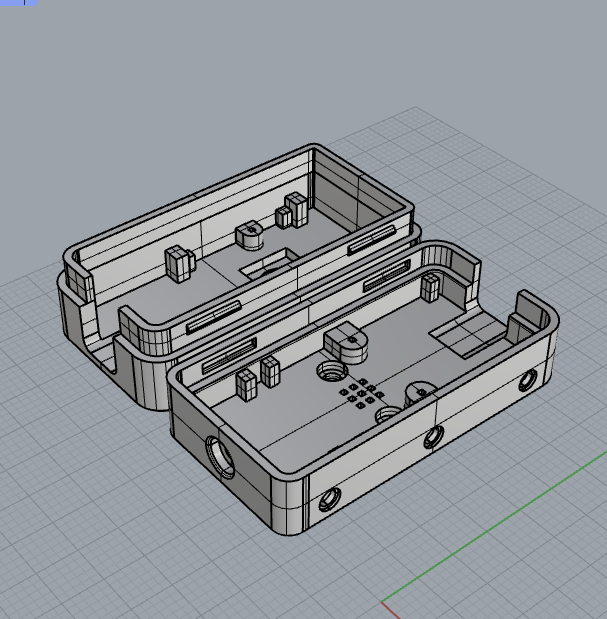
## The case for Grove Vision AI V2 - Himax
You can find the case here as well.
## Preparatory Work: KiCad Download and Library Download
1. You can refer to this [link](https://www.kicad.org/download/) to download the KiCad software.
2. You can [download](https://github.com/Seeed-Studio/OPL_Kicad_Library) the "OPL_KiCad_Library" or use command to clone:
```
git clone https://github.com/Seeed-Studio/OPL_Kicad_Library.git
```

## How to add and use Seeed OPL Footprint Libraries
### Take Grove Vision AI V2 and XIAO footprint as an Example
1. Open KiCad and refer to `File -> Open Project`.

2. Find the "Gorve Vision AI V2 Library" and open the project:

3. Double click the "Grove Vision AI V2" PCB file and you will see below:

4. Refer to the `Perferences -> Manage Footprint Libraries`

5. Here is the existed footprint libraries and you can click the button below:

6. Find the "Gorve Vision AI V2 Library" and open the folder that contains the boards footprint:

Now you have added the "XIAO footprint library"
7. You can click here to use the added library:

8. Search for "seeed" and you can check the footprint added:

9. Click "ok" and you can add the XIAO RP2040 footprint into the "Grove Vision VI V2".

10. You can change any component on the Grove Vision VI V2 module and make it your own project.
## How to add and use Seeed OPL Symbol Libraries
### Take Grove Vision AI V2 and Sensor-Transducer as an Example:
1. Open KiCad and refer to `File -> Open Project`.

2. Find the "Gorve Vision AI V2 Library" and open the project:

3. Double click the "Grove Vision AI V2" .sch file and you will see below:

4. Refer to the `Perferences -> Manage Symbol Libraries`

5. Here is the existed symbol libraries and you can click the button below:

6. Find the "OPL_Sensor-Transducer" lib file:

Now you have added the "OPL_Sensor-Transducer library"
7. You can click here to use the added library:

8. Search for "OPL" and you can check the symbol added:

9. Click "ok" and you can add it into the "Grove Vision VI V2".

10. You can change any component on the Grove Vision VI V2 module and make it your own project.
## Scale up Your Creation With Seeed Studio Fusion
Seeed Studio Fusion serves as the comprehensive service platform for Seeed Studio, a global one-stop online platform offering PCB manufacturing, PCB assembly and hardware customization with global sourcing capability. Whether you need prototyping, mass production, custom solutions for open-source products, or the transformation of your creative ideas into profitable products, Seeed Studio Fusion can meet your requirements.
- [PCB/PCBA Design](https://www.seeedstudio.com/fusion_pcb.html)
- [Fusion Website](https://www.seeedstudio.com/fusion.html)
- **Email Contact**: fusion@seeed.io
## Co-Create with Seeed Studio
Leverage our Co-Create Program to transform your advanced prototype into a commercially successful product! This program is designed to optimize your product's journey from prototype to market by handling marketing, packaging, and distribution, allowing you to concentrate on refining your product. Upon acceptance of your prototype by Seeed, it will be showcased on the Seeed Studio marketplace. You'll receive a portion of the profits for each unit sold.
- [Application Form](https://docs.google.com/forms/d/e/1FAIpQLSe3A7_rIbn2OLO4JyJd_poGZodItCaRy6M6-3FtdqL3xG1Usg/viewform)
- [Co-Create Website](https://www.seeedstudio.com/co-create.html)
## Resources
- [Seeed Studio Open Parts List](https://files.seeedstudio.com/wiki/OPL/OPL_list.xlsx)